
Use case
Tools and vehicles
Do you have several vans or job sites and want to know where each tool is? Use the template to set up your tool list and print labels. Then photograph the cargo area or the shelf with the Scan2List app and see right away what’s missing.
Where are you starting from?
Depending on what you already have, you may not need the template at all, or only for part of it.
Path A
My list is complete
Your tool list is complete, so you load it straight into the app.
Your tool list
Download the template and enter your tools. For each tool, write down where it belongs, for example Van 1 or Storage.
| Asset ID | Equipment | Quantity | Location | Value | Notes |
|---|---|---|---|---|---|
| TL-0001 | Rotary hammer | 1 | Van 1 | 690 | Next inspection 03/2027 |
| TL-0002 | Cordless drill | 2 | Van 1 | 260 | |
| Laser level | 1 | Storage | 390 |
Fill in the template in Excel, Numbers or Google Sheets. Then use the generator to create codes and labels and to save the list for the app.
How it works
Tools are rarely stolen. Mostly they are just somewhere else: in the other van, at the last job site or with a coworker. With Scan2List every tool gets a number and a fixed place. A photo of the cargo area shows you whether everything is there before you drive off.
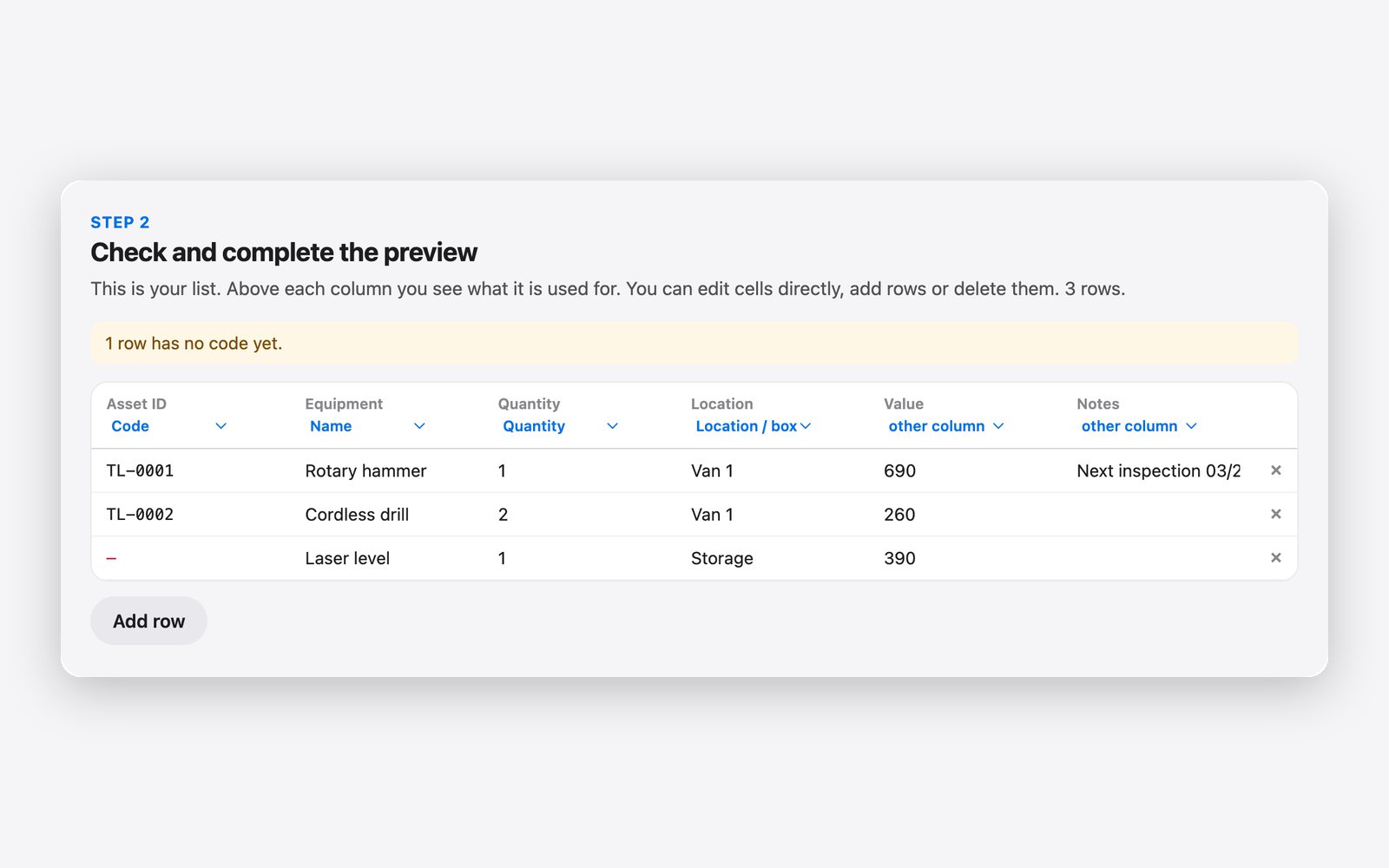
on the computer
1. Set up the list
Download the template above and enter every tool that has its own place, from the rotary hammer to the multimeter. Small parts like bits you group as a set. The “Location” column says where the tool belongs, for example Van 1, Van 2 or Storage. In the notes you can write the next inspection date, for example for testing electrical tools. If you already have an inventory list in Excel, load it straight into the generator.
on the computer
2. Print labels
Load the list into the generator and click “Create codes”. Every tool gets a number like TL-0001. Stick the label on the case or directly on the tool, on a smooth spot that doesn’t get hot and isn’t always in your hand. For job sites, vinyl labels or a strip of tape over the label last longer. You can also print a large label for each location and stick it inside the van door.
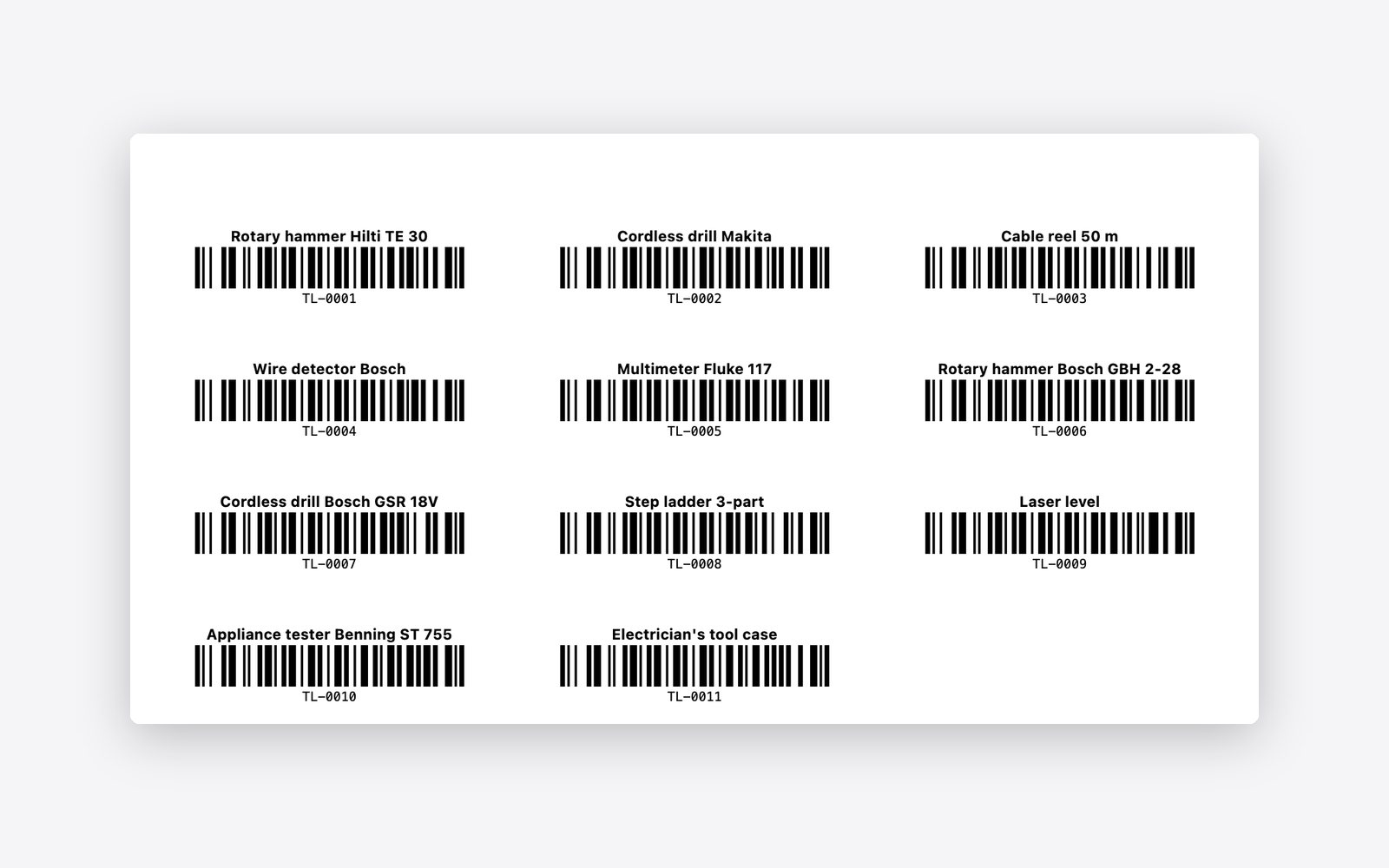
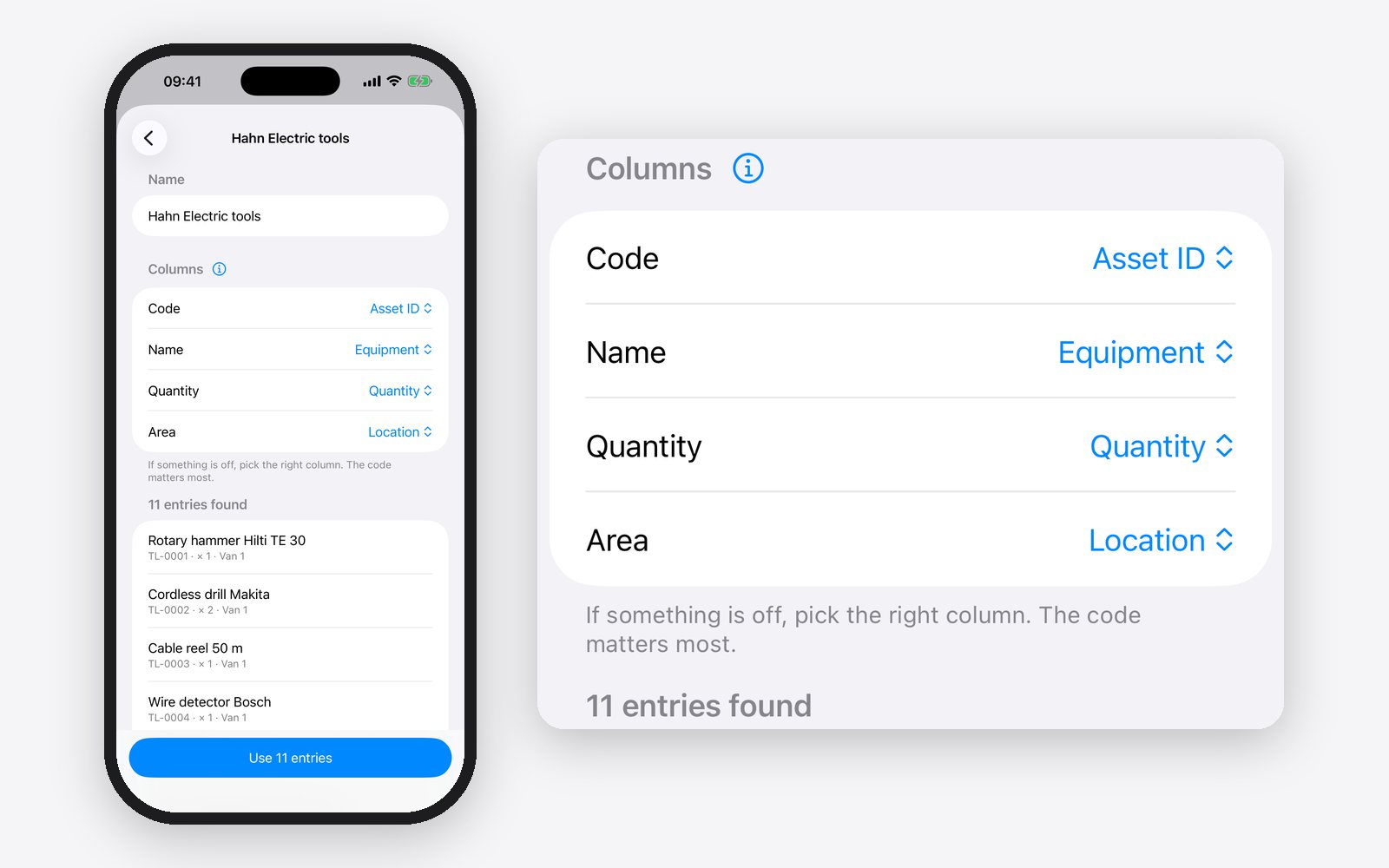
on the computer on the iPhone
3. Get the list onto your iPhone
Save the list in the generator with “Save CSV”, or save the filled-in template as a CSV file. Send the file to your iPhone, via AirDrop, by emailing it to yourself or via iCloud Drive. In Scan2List, tap “Inventory” at the bottom, then “Start inventory” and “Load a list”. The app creates its own area for every location, so for each van and the storage room.
on the iPhone
4. Photograph the cargo area
Under “Scanning into”, choose the vehicle, for example Van 1, and photograph the shelf in the cargo area. The app reads all labels in a photo at once. That way a cargo area is checked in a minute, for example in the morning before leaving or on Friday when you park. Tools that are not in any photo, you add with the live scan.
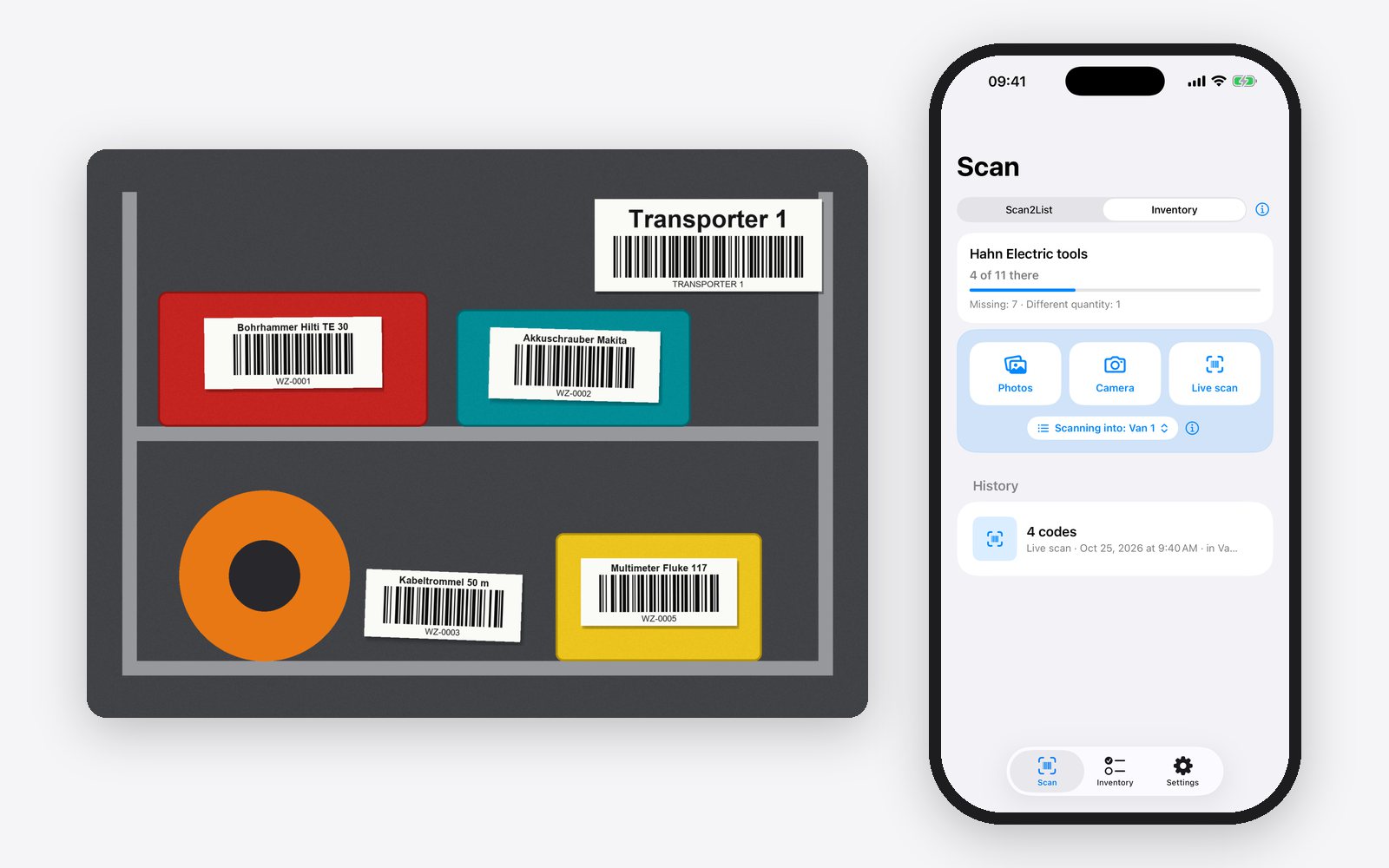
on the iPhone
5. See what’s missing
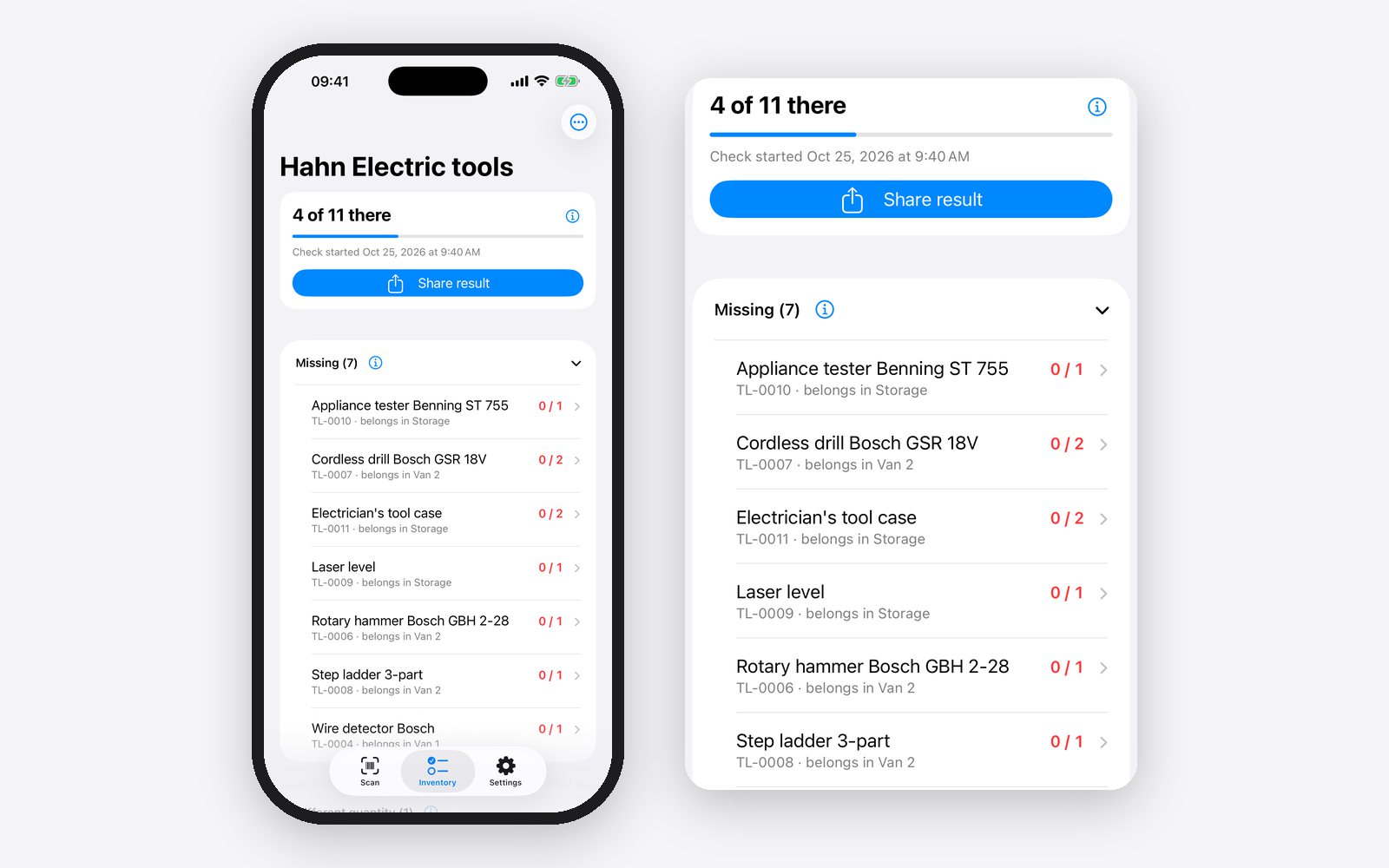
In the “Inventory” tab, “Missing” shows which tool is not there and where it belongs, for example “Wire detector Bosch, belongs in Van 1”. Under “Different quantity” you see when only one of two cordless drills is in the vehicle. So you call your coworker right away instead of searching at the job site. At the end, share the result as a table, for example for the yearly inventory.
What you get
You no longer search the job site for a tool that is in the other van. One photo per vehicle is enough to know whether everything is on board. With the list you always know which tools you have and what they are worth, and the inspection dates are right next to them. Template, generator and app are free, and you don’t need expensive tool tracking software.
How to set up tool tracking step by step is explained in the guide Tool tracking for contractors with barcodes.
Questions
How often should I check?
For vehicles, a quick check once a week or when loading is often enough. The whole list you check once a year, for example at your inventory count.
Does a paper label stay on tools?
On cases, usually yes. Directly on tools, vinyl labels last longer, or you put a strip of clear tape over them.
Can I enter inspection dates?
Yes, in the Notes column. They are in the file that you can open in Excel. The app does not remind you of the date, though.
Does it cost anything?
The template and the generator are free. The app is free too and shows ads. Scan2List Pro removes the ads.
Note: the result is only as accurate as your list, your labels and your photos. We give no guarantee. Scan2List does not replace a check you have agreed on, for example with a rental company or an insurer, and it is not legal or tax advice. More in our legal notice (in German).