Use case
Receiving deliveries
A delivery has arrived and you want to know whether it’s all correct? Use the template to turn your purchase order or the delivery note into a list. Then photograph the cartons on the pallet with the Scan2List app and see right away what’s missing and what came short.
Where are you starting from?
Depending on what you already have, you may not need the template at all, or only for part of it.
Path A
My list is complete
You can load the purchase order from your inventory software straight into the app.
Path B
My list needs more entries
Back orders or extra items are still missing from the order.
Path C
Labels are missing
Some cartons arrive without a barcode, for example from small suppliers.
Your delivery list
Download the template or use the purchase order from your inventory software. You need a column with the barcode that is on the outside of the carton.
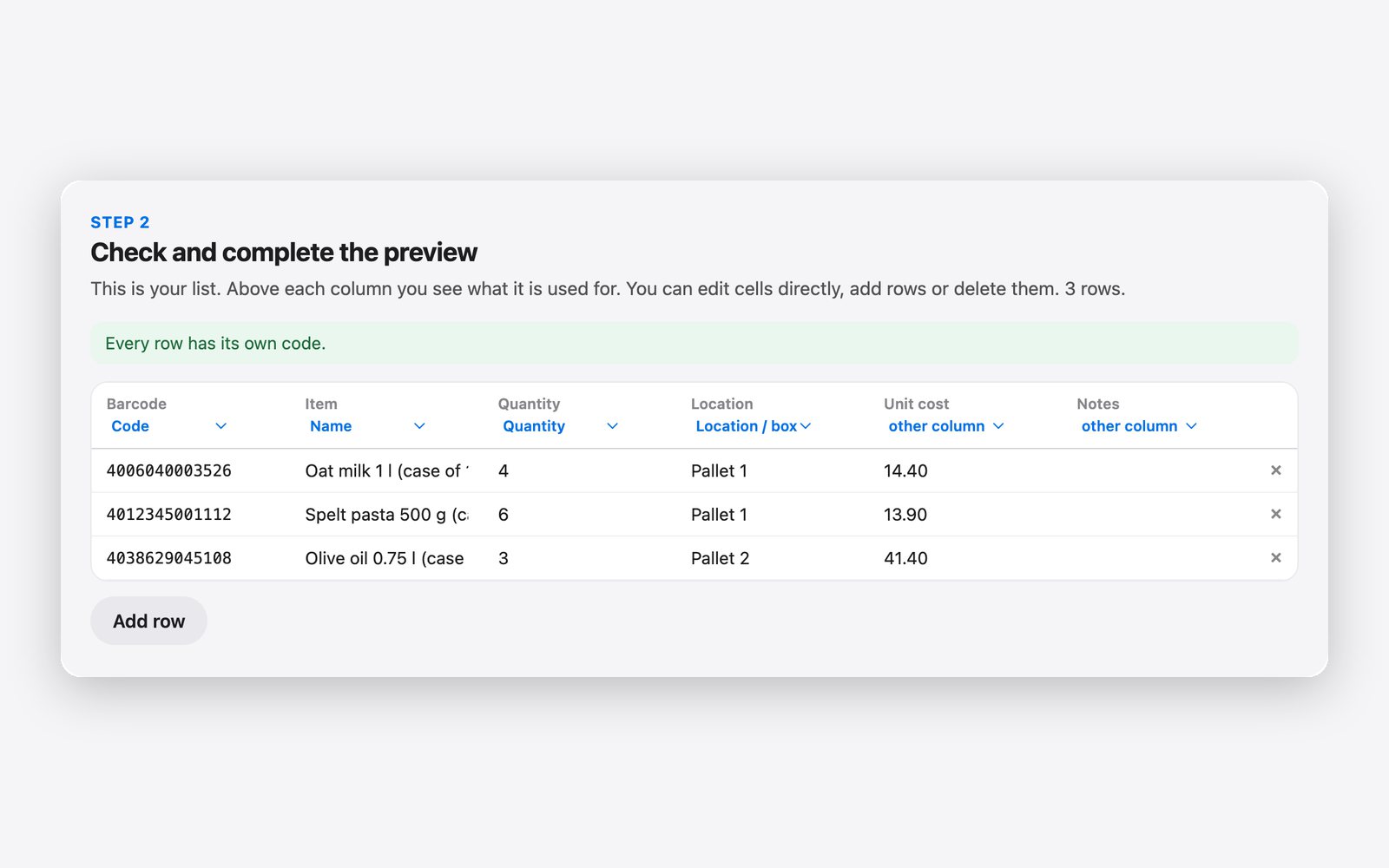
| Barcode | Item | Quantity | Location | Unit cost | Notes |
|---|---|---|---|---|---|
| 4006040003526 | Oat milk 1 l (case of 12) | 4 | Pallet 1 | 14.40 | |
| 4012345001112 | Spelt pasta 500 g (case of 10) | 6 | Pallet 1 | 13.90 | |
| 4038629045108 | Olive oil 0.75 l (case of 6) | 3 | Pallet 2 | 41.40 |
Fill in the template in Excel, Numbers or Google Sheets. Then use the generator to create codes and labels and to save the list for the app.
How it works
When goods come in, often only the number of pallets or parcels is counted. Whether the cartons contain what was ordered, you only notice when something is missing on the shelf. With Scan2List you compare the delivery with the order right while unpacking. The cartons usually already have barcodes from the manufacturer, so you don’t have to label anything.
on the computer
1. Load the list
Most inventory software and POS systems can save a purchase order as an Excel or CSV file, and some suppliers send the delivery note as a file. Load the file straight into the generator. It usually recognizes barcode, item and quantity on its own. Or copy the order into the template. Make sure the list has the barcode that is on the outside of the carton. It is often a different one from the barcode on the single bottle or pack. If you count cartons, enter the number of cartons as the quantity.
on the computer
2. Labels only where needed
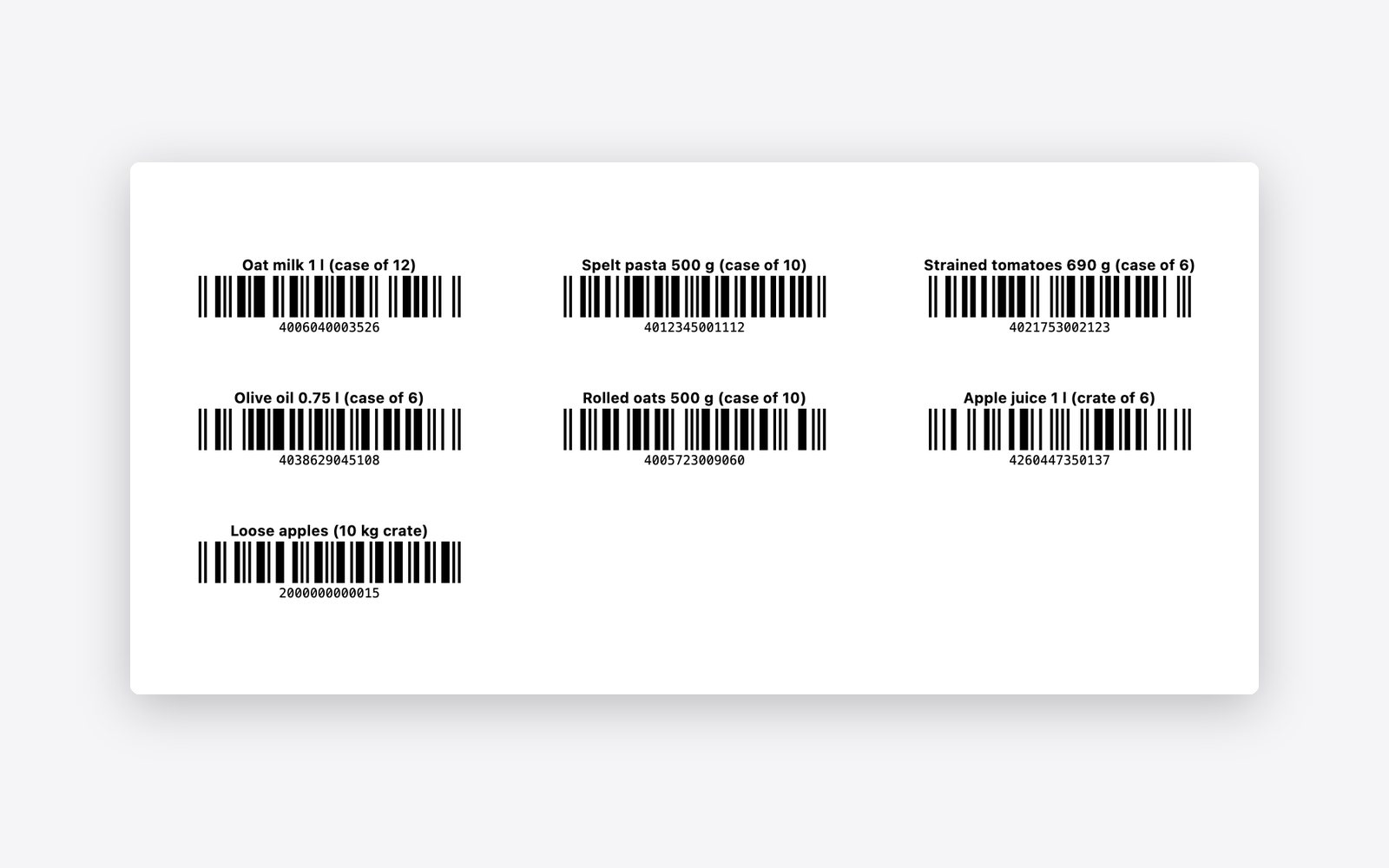
You rarely need labels when receiving goods, because the cartons already carry barcodes from the manufacturer. Only for goods without a barcode, for example loose apples in a crate, the generator creates a number that you print and stick on the crate. If the delivery comes on several pallets, large labels like “Pallet 1” help. Stick them on the wrap, and later every photo shows which pallet you are checking.
on the computer on the iPhone
3. Get the list onto your iPhone
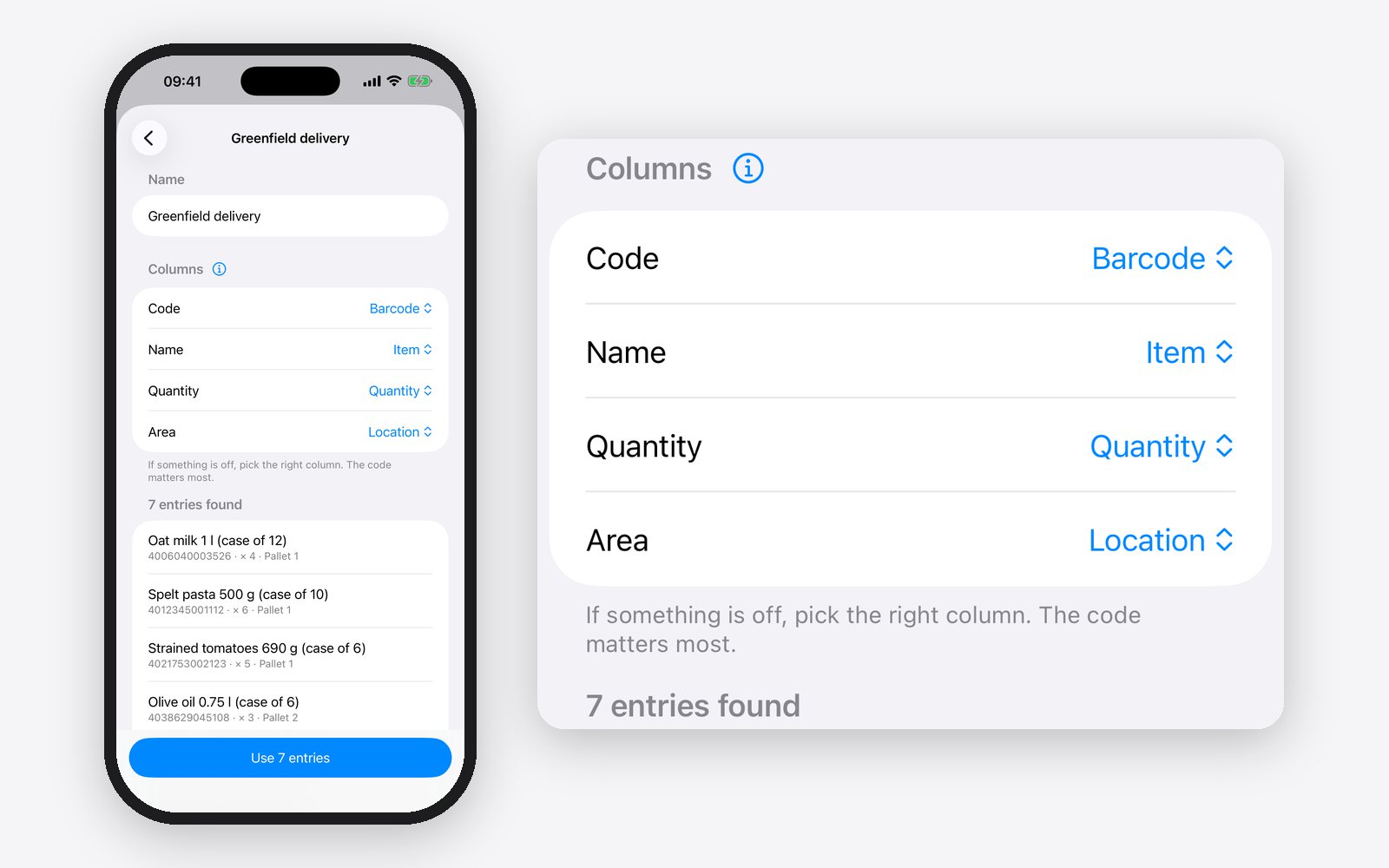
Save the list in the generator with “Save CSV”, or save the filled-in template as a CSV file. Send the file to your iPhone, via AirDrop, by emailing it to yourself or via iCloud Drive. In Scan2List, tap “Inventory” at the bottom, then “Start inventory” and “Load a list”. The app creates its own area for every pallet. If everything comes at once, there is just one area.
on the iPhone
4. Photograph the pallet
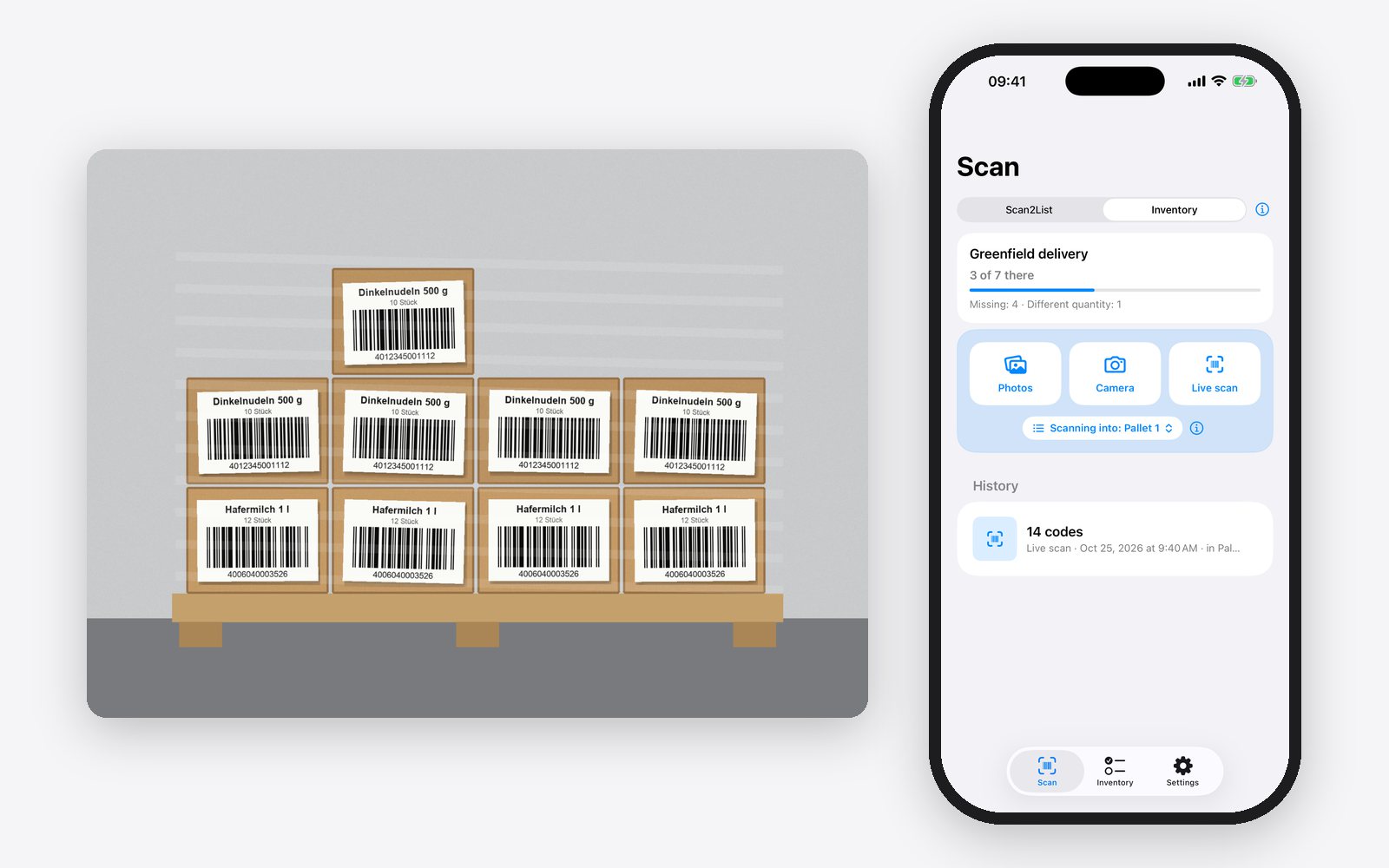
Under “Scanning into”, choose the pallet you are standing in front of and photograph it from the sides where labels are visible. The app reads all barcodes in a photo at once. Cartons on the inside that are not in any photo, you add with the live scan while unpacking. If a carton was counted twice, for example on a corner from two sides, tap it in the result and lower the quantity.
on the iPhone
5. See what’s missing
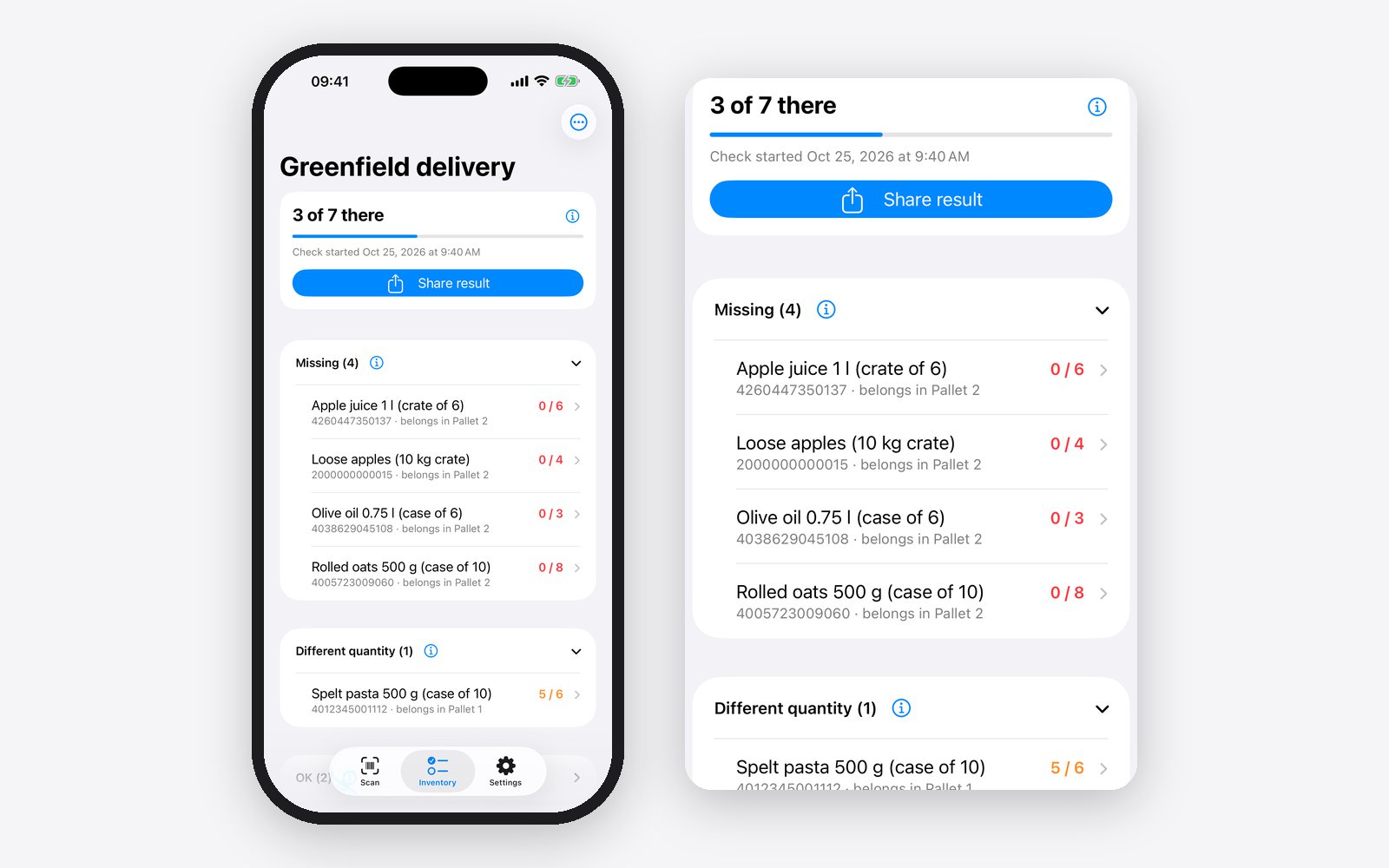
In the “Inventory” tab you see how many items were delivered in full. Under “Missing” is what didn’t come at all, under “Different quantity” where there is too little or too much, for example “Spelt pasta, 5 of 6”. What was delivered but not ordered is under “Not on the list”. With “Share result” you get a table that you can send to your supplier or keep for your bookkeeping.
What you get
You notice a wrong delivery while the driver is still there, or at the latest the same day, not only when a customer asks for the goods. Instead of ticking off the delivery note line by line, you photograph the pallet and get the differences as a list. You don’t need a handheld scanner or expensive warehouse software. Template, generator and app are free.
Questions
Which barcodes does the app read?
The usual barcodes on cartons and products, for example EAN-13, UPC, Code 128 and ITF, plus QR codes and Data Matrix as found on medicines and electronics.
The carton has a different barcode than my list. What now?
Then the app shows the carton under “Not on the list”. Tap it there and add it with “Add to the list”, or add the carton barcode to your list next time.
Do I need a handheld scanner?
No. The app uses your iPhone’s camera.
Does it cost anything?
The template and the generator are free. The app is free too and shows ads. Scan2List Pro removes the ads.
Note: the result is only as accurate as your list, your labels and your photos. We give no guarantee. Scan2List does not replace a check you have agreed on, for example with a rental company or an insurer, and it is not legal or tax advice. More in our legal notice (in German).