Use case
Rental and hire
Do you rent out AV gear, furniture or equipment and want to see quickly on return whether everything came back? Use the template to set up the list for a booking and print labels for everything without a barcode. On hand-out and on return, photograph the boxes with the Scan2List app and see what’s missing.
Where are you starting from?
Depending on what you already have, you may not need the template at all, or only for part of it.
Path A
My list is complete
You can load the list from your rental software straight into the app.
Path C
Labels are missing
Accessories like cables or stands often have no barcode yet.
Path D
No list yet
If your gear has barcodes, just photograph it. Otherwise use the template below.
Your rental list
Download the template or use the list from your rental software. For each item, enter the box it belongs in.
| Code | Name | Quantity | Box | Value | Notes |
|---|---|---|---|---|---|
| RNT-0101 | Projector | 1 | B1 | 650 | |
| RNT-0103 | HDMI cable 10 m | 2 | B1 | 25 | |
| RNT-0201 | Speaker | 2 | B2 | 700 | |
| Extension reel 25 m | 2 | B3 | 45 |
Fill in the template in Excel, Numbers or Google Sheets. Then use the generator to create codes and labels and to save the list for the app.
How it works
When gear comes back, often just a small part is missing: a cable, a remote, a wireless mic. If you only notice days later, it’s hard to find out where it went. With Scan2List you check the same booking twice, once on hand-out and once on return, each time with one photo per box.
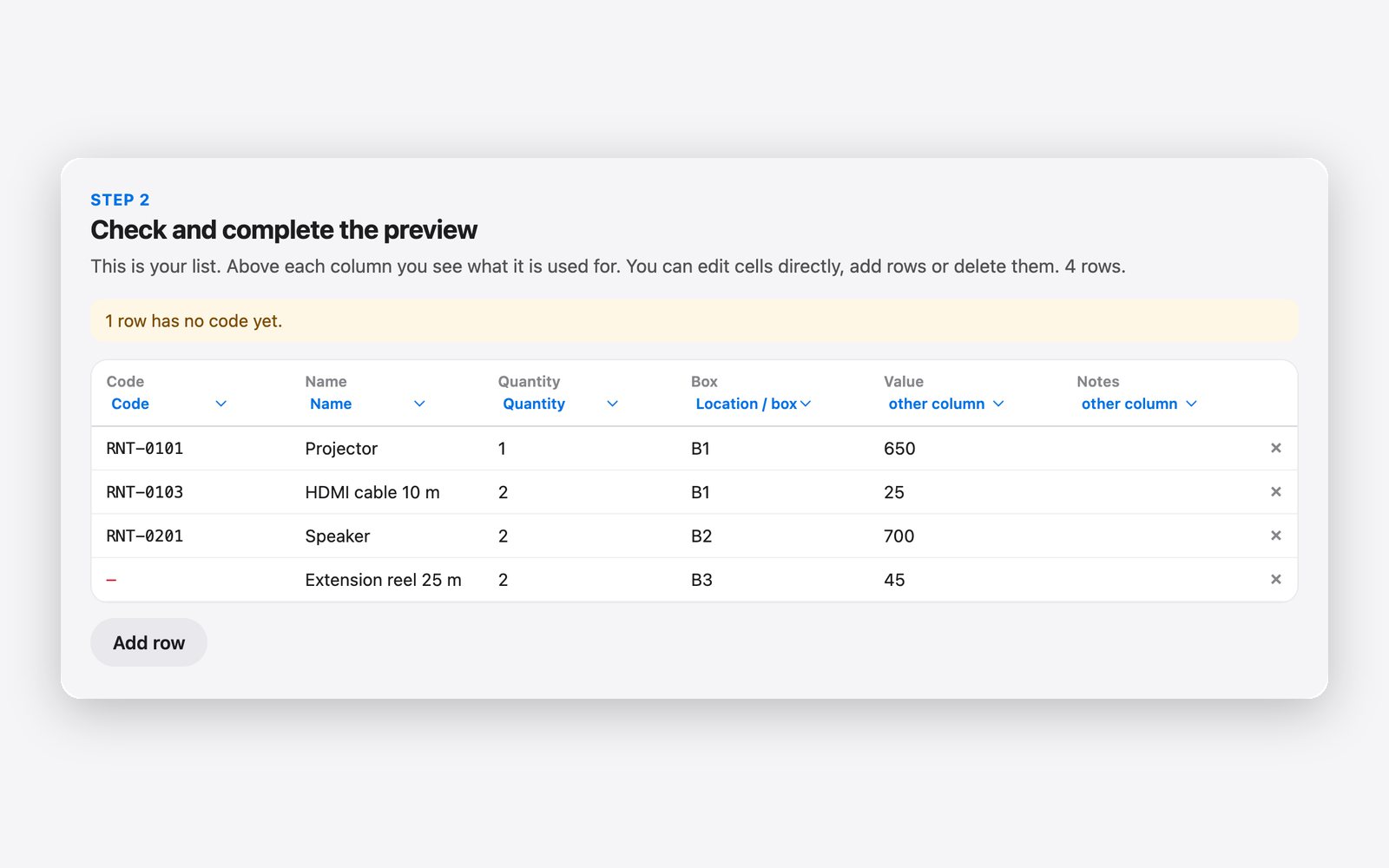
on the computer
1. Set up the list
Create a separate list for each booking, for example “Smith wedding”. Many rental programs can save a booking or delivery note as an Excel or CSV file. Load it straight into the generator and check in the preview that the columns are right. Otherwise use the template and enter the items. For each item, enter the quantity and the box it is packed in, for example B1. Large items like high tables get their own area, for example “Stack”.
on the computer
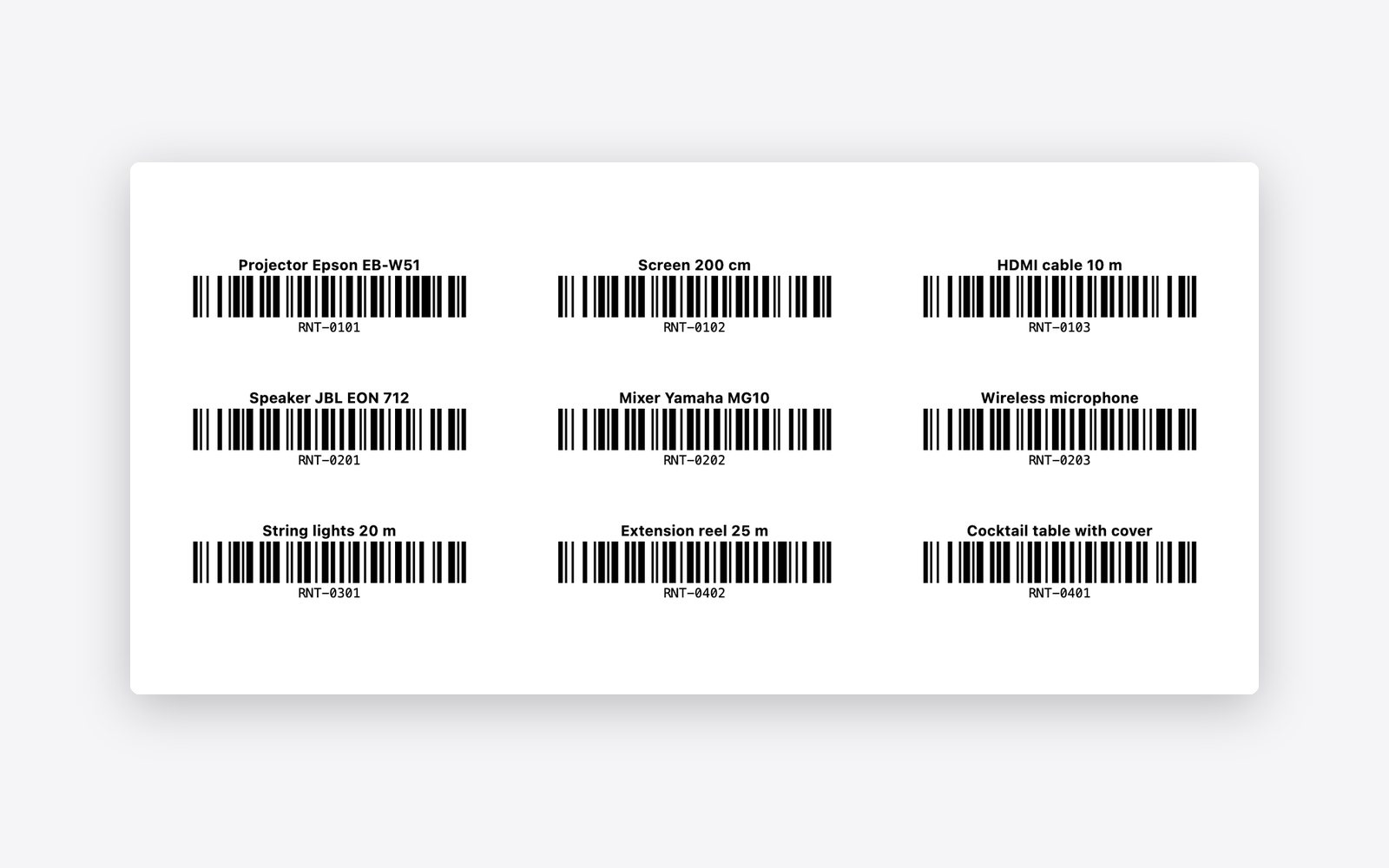
2. Print labels
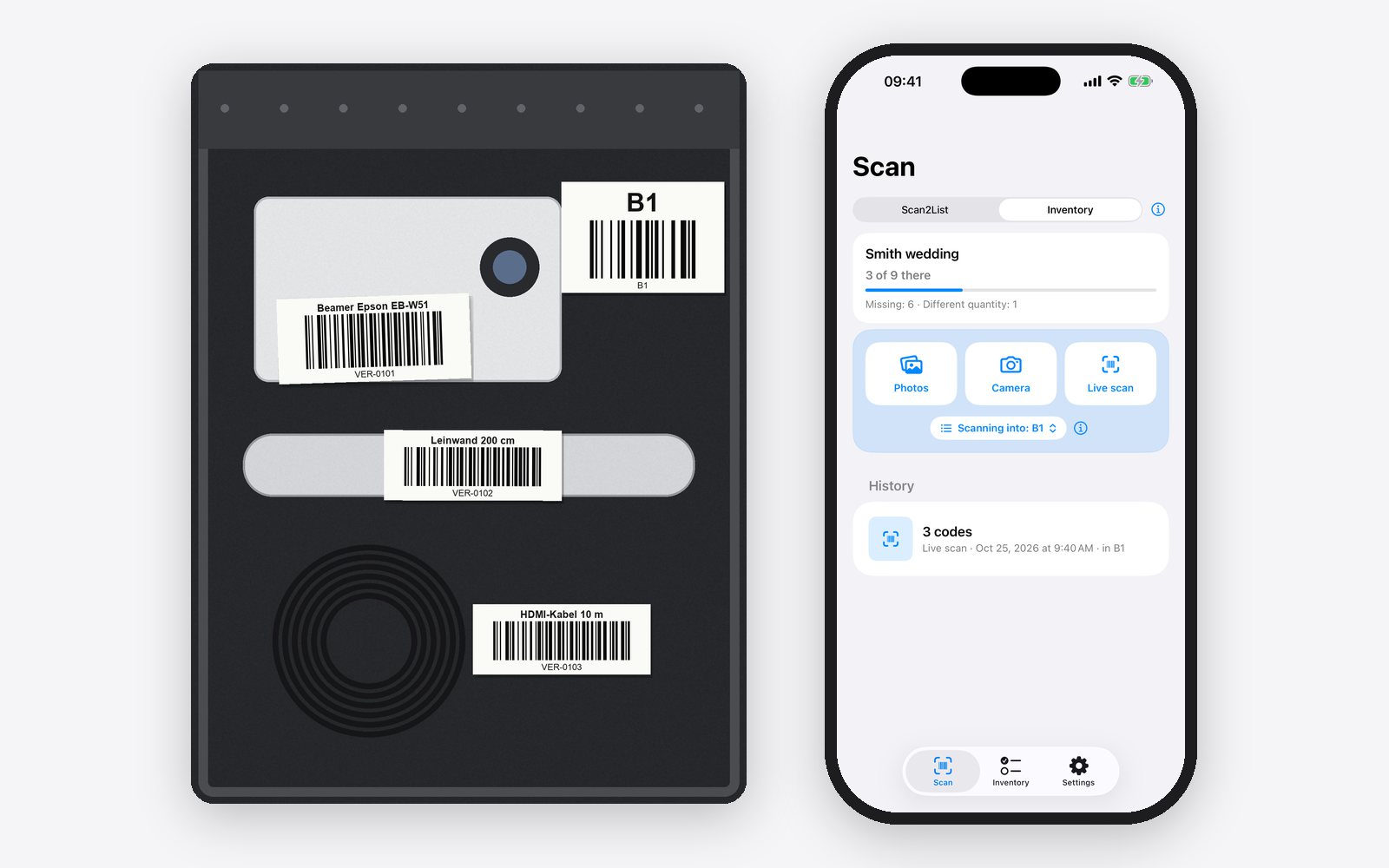
If your gear already has asset numbers with a barcode, simply photograph those. For everything else, click “Create codes” in the generator and you get numbers like RNT-0402. The labels go directly on the items, ideally in a spot that stays visible when packed. You only do this once, because the labels stay on for all future bookings. You can also print labels for the boxes.
on the computer on the iPhone
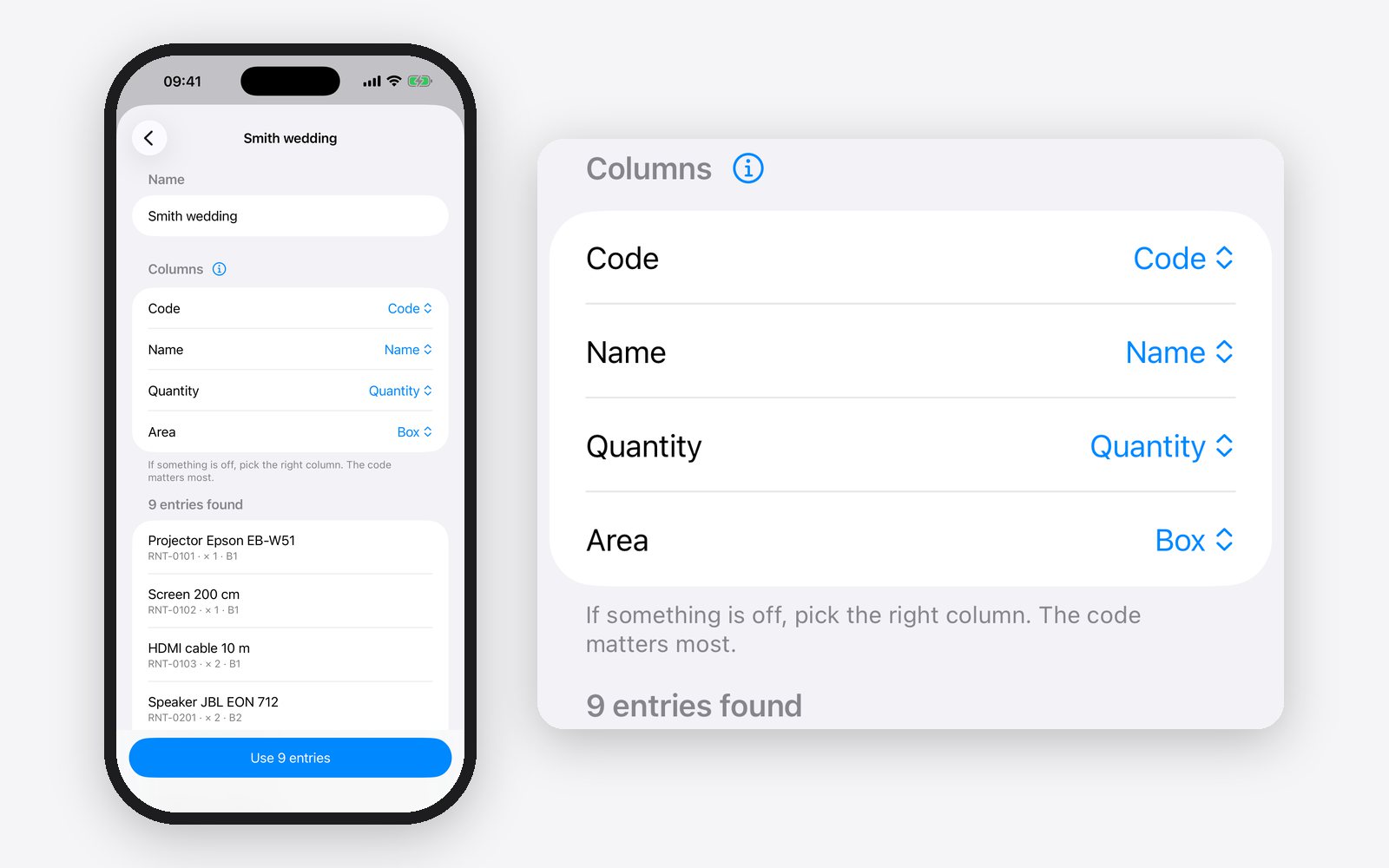
3. Get the list onto your iPhone
Save the list in the generator with “Save CSV”, or save the filled-in template as a CSV file. Send the file to your iPhone, via AirDrop, by emailing it to yourself or via iCloud Drive. In Scan2List, tap “Inventory” at the bottom, then “Start inventory” and “Load a list”. The app creates its own area for every box.
on the iPhone
4. Photograph on hand-out
Before the gear goes out, choose the box under “Scanning into”, open it and photograph it from above. The app reads all labels in the box at once. So you see whether everything is really packed before the customer leaves. If there are several identical items, for example two HDMI cables, the app counts them and shows you when one is missing.
on the iPhone
5. Check on return
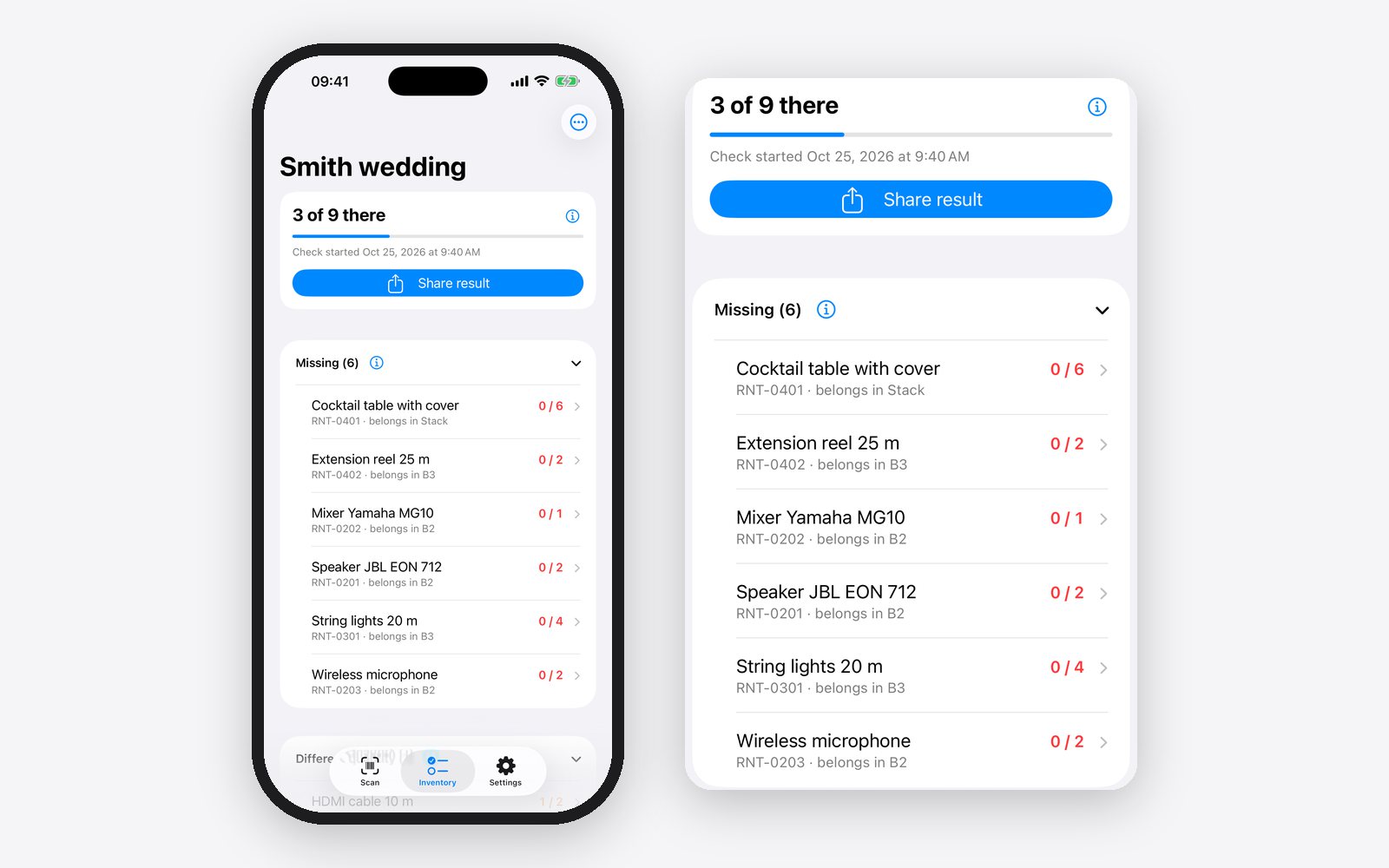
When the gear comes back, tap “New check” in the “Inventory” tab. The list stays, the photos from the hand-out are cleared. Then photograph the boxes again. Under “Missing” and “Different quantity” you see right away what didn’t come back, for example “HDMI cable 10 m, 1 of 2”. With “Share result” you send the customer a table so you can sort out where the item is.
What you get
You see during the return whether everything is there, not at the next booking when the cable is missing. If you share the result on hand-out and on return, you have both as a table, and there are fewer arguments. You stick on the labels only once, after that you check every booking in a few minutes. Template, generator and app are free, and the app also works in the warehouse without internet.
Questions
Can I check several bookings at the same time?
Yes. Create a separate list for each booking. In the app you can create several inventories and switch between them.
My gear already has barcodes. What now?
Then simply use them. Enter the numbers in the Code column or load them from your rental software.
Do I need internet?
No. The app reads the barcodes directly on the iPhone.
Does it cost anything?
The template and the generator are free. The app is free too and shows ads. Scan2List Pro removes the ads.
Note: the result is only as accurate as your list, your labels and your photos. We give no guarantee. Scan2List does not replace a check you have agreed on, for example with a rental company or an insurer, and it is not legal or tax advice. More in our legal notice (in German).