Features
What Scan2List does
Scan2List photographs many barcodes at once and turns them into a list. You can also scan documents with the app and share them as PDF. Here is everything the app does, what is new in the current version, and what it deliberately does not do.
One app, three modes
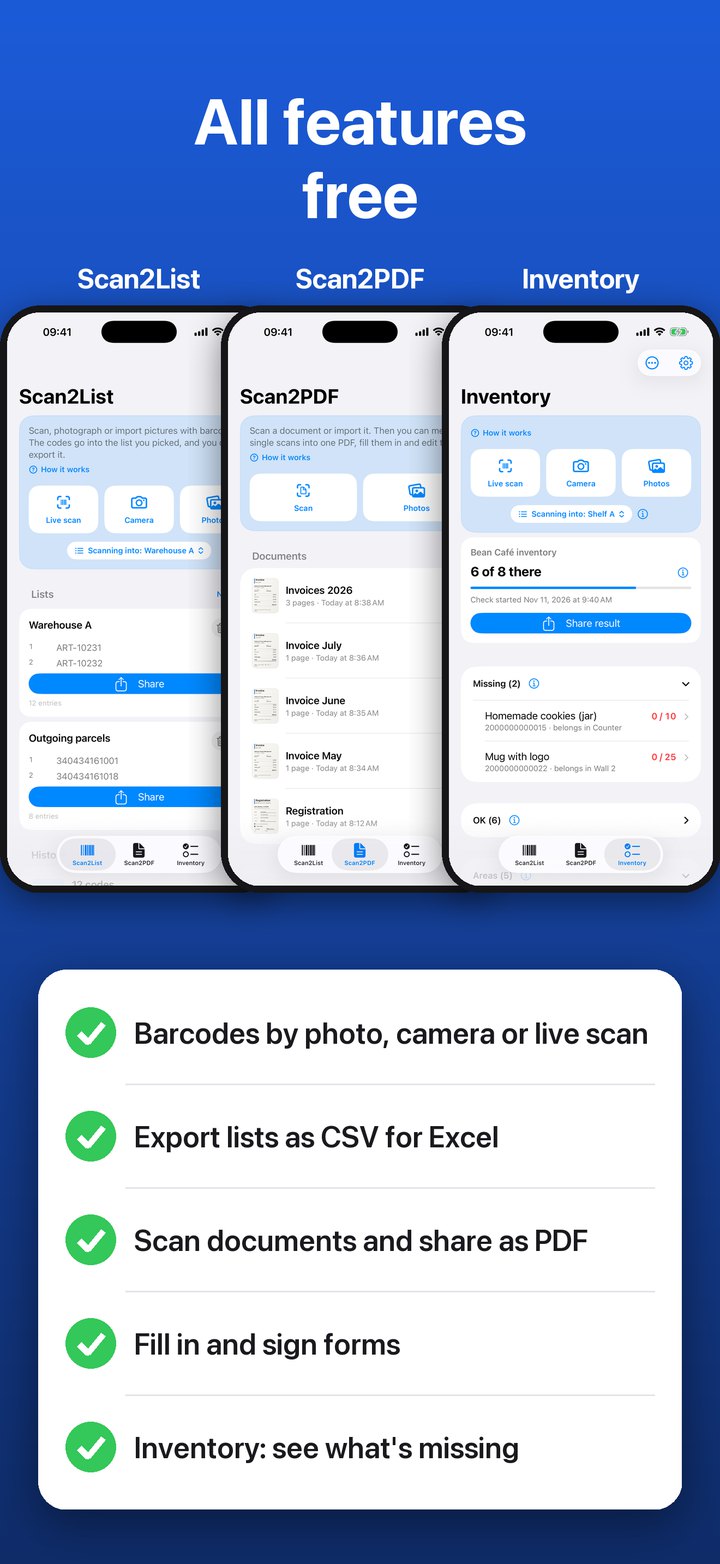
At the bottom of the app you switch between the three modes.
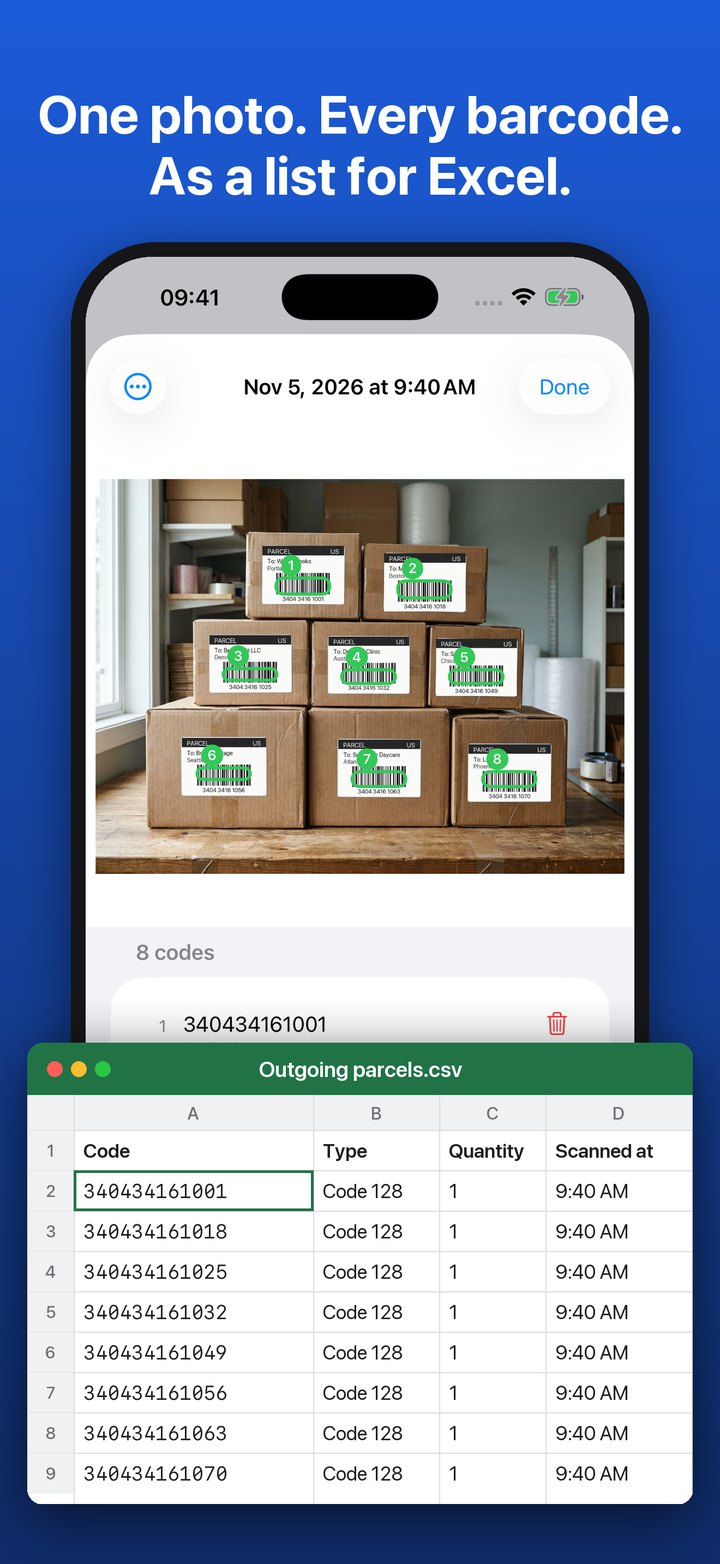
Scan2List mode
You take a photo, the app reads all the codes and you pass the list on. For deliveries, serial numbers, parcels, books, anything that has to end up in a table.
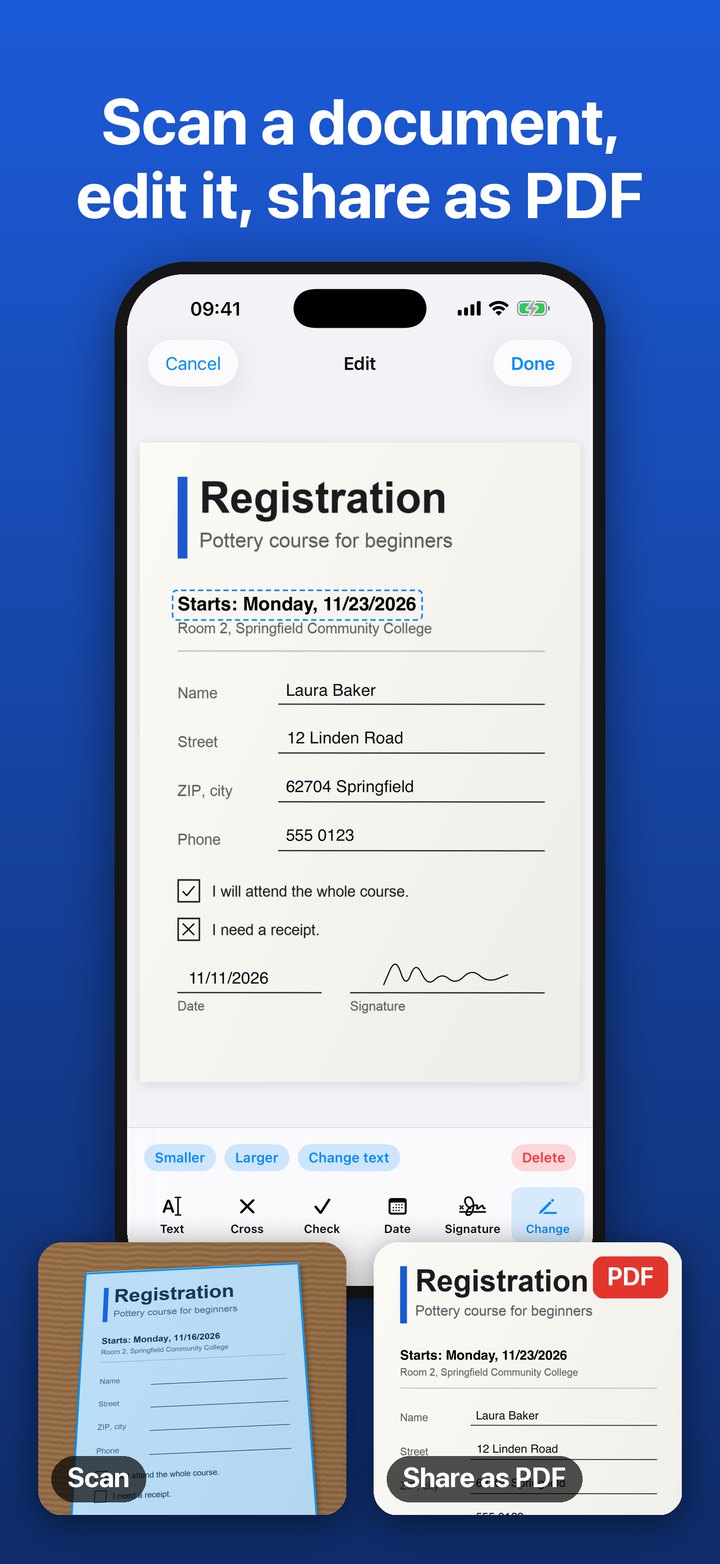
Scan2PDF mode
You scan a letter, an invoice or a form, fill it in, sign it and share it as a PDF.
Inventory mode
You load a list of what should be there, take photos and see right away what is missing, where the quantity is off and what is not on the list.
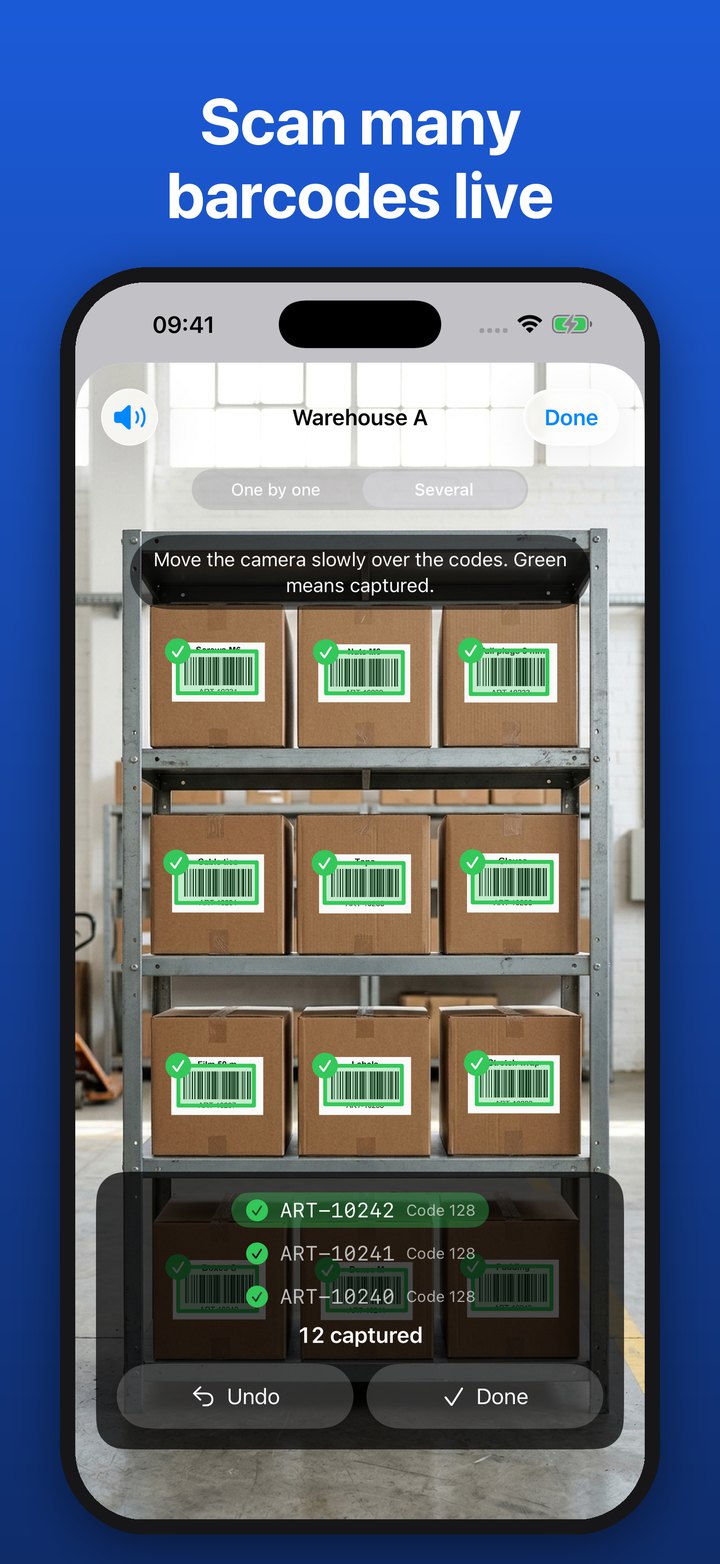
Capture: one photo instead of many scans
Take a photo or pick pictures from your library. The app finds every barcode in it, thirty or forty at once, tilted, at the edge or in different sizes. Detection runs on the iPhone, without internet.
Without a photo, use the live scan: in “Several” mode you move the camera slowly over the shelf or boxes, and every code that is read turns green and is counted. In “One by one” mode it reads one code after another, handy for single items. A short beep confirms each code.
- Photo from the camera or from the library, several at once
- Live scan with “Several” for whole shelves, with “One by one” for single items
- Codes that look like a barcode but cannot be read are marked as probable codes. Tap the spot and scan it right there. Can be switched off under Settings › Photo scan.
- Type codes in by hand when a label is missing
- History with every photo and live scan, each with its codes
Lists: quantities, notes, assignment
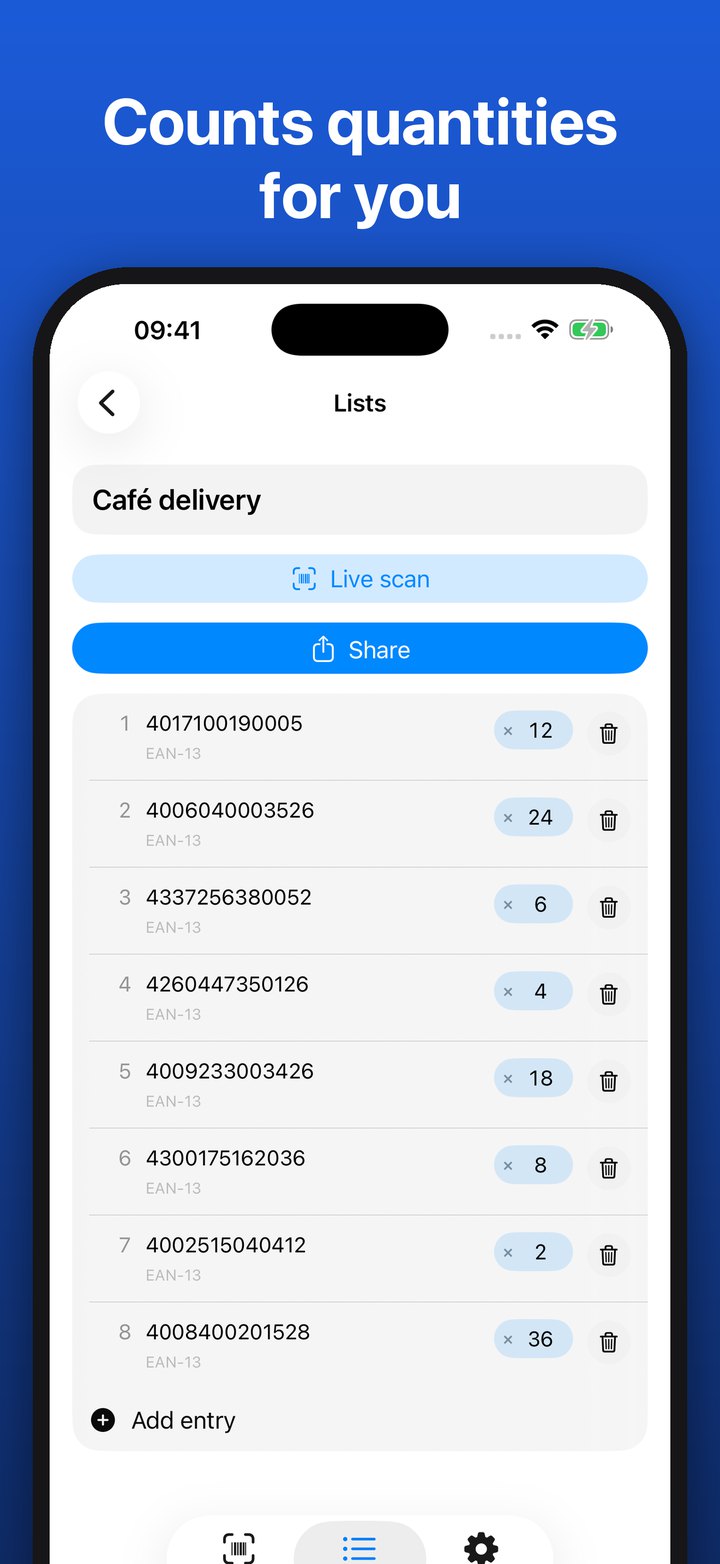
Every list collects the codes from any number of photos and live scans. If a code shows up twice, the app counts it as quantity. Change the quantity with a tap, for example when six identical packs stand one behind the other and only the front one is visible.
You do not have to pick a list in advance: scan first, assign later. In the history, select one photo or several and put them into a list. Every entry shows which list it is already in.
- Any number of lists, for example per pallet, room or job
- Quantity and note for every code
- Select several entries from the history and assign them to one or more lists
- Codes from photos and from live scans in the same list
Share: the list lands in Excel
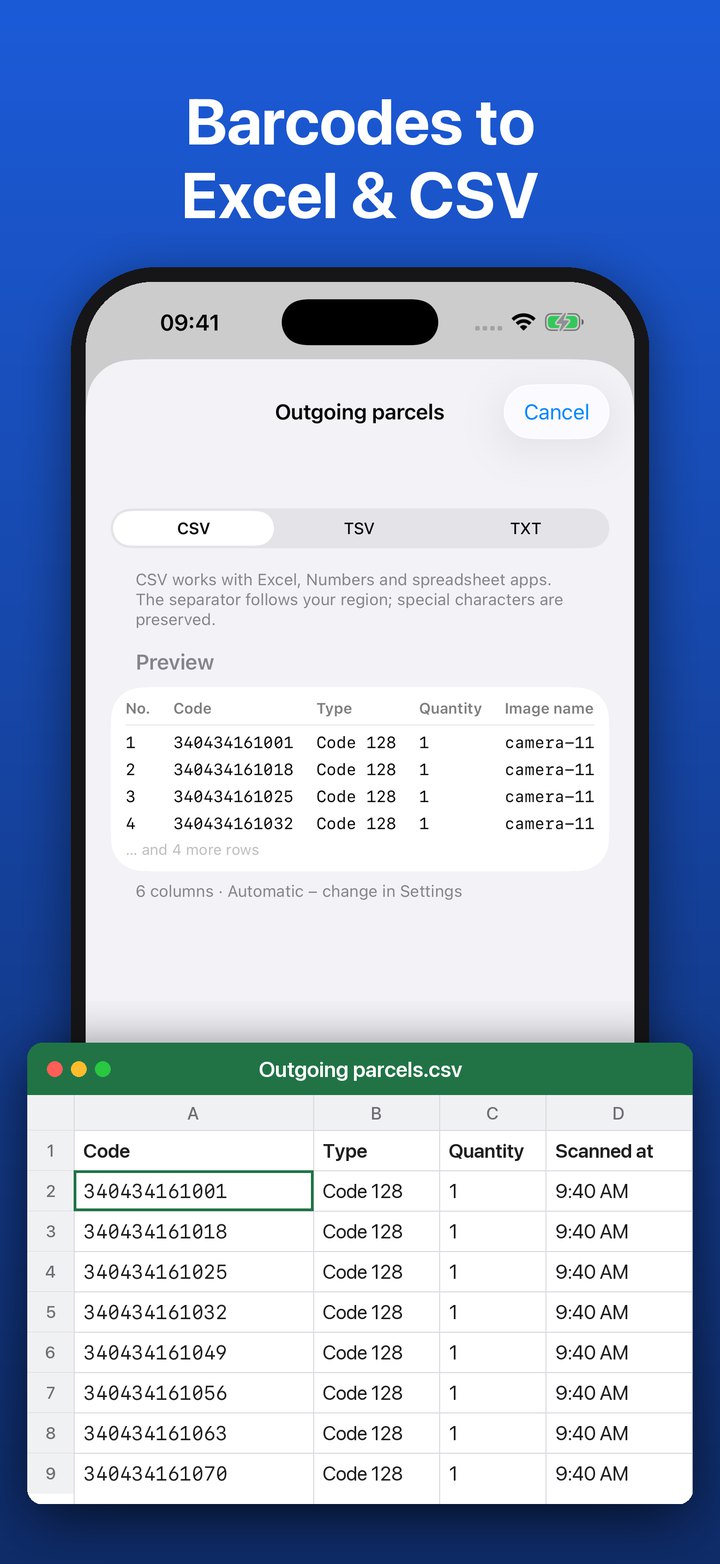
With “Share” you send a list via AirDrop, email, WhatsApp or into any other app. The file opens right in Excel, Numbers or Google Sheets, and any inventory system with a CSV import takes it. Or copy only the codes and paste them into a message.
- CSV, TSV or TXT
- Separator automatic, comma or semicolon, to match your Excel
- Choose the columns: code, quantity, type, note, time
- Copy codes as text
Scan2PDF mode: scan, fill in, share as PDF
You scan a letter, an invoice or a form with the camera. The app crops every page and straightens it. Then you fill in the sheet, sign with your finger and share it as a PDF.
The app recognizes the text on the pages, so you can search the PDF and copy text from it. How it works step by step is on the page about Scan2PDF mode.
- Several pages in one document, also from pictures in your photos
- Type text, set a cross or a check mark, insert the date and sign
- Change printed text, for example a wrong date
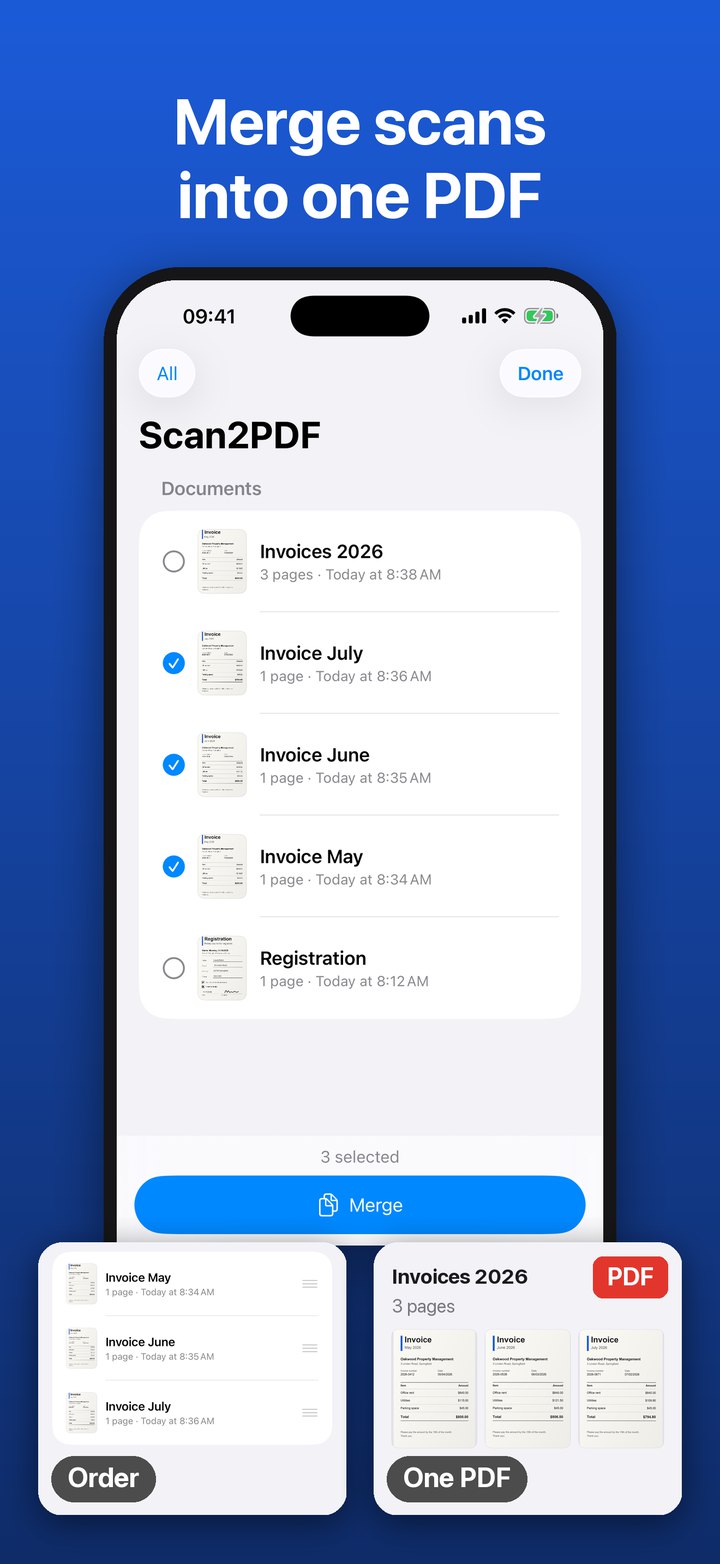
- Merge several scans into one PDF
- Arrange, rotate and delete pages
- Color or black & white for the whole document
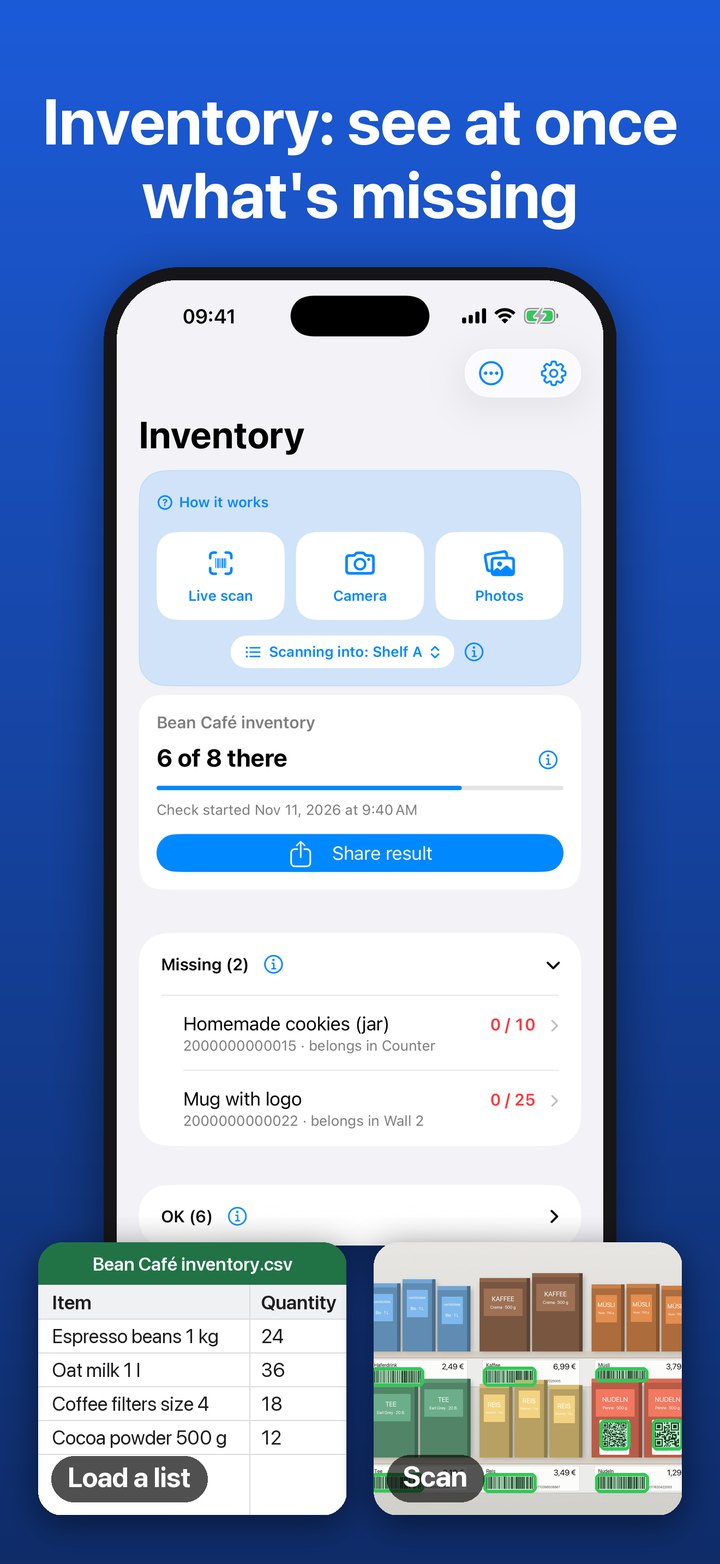
Inventory mode: see what is missing
You load a list of what should be there as a CSV file, for example from your POS, from Excel or from one of our templates. The app recognizes the columns itself. Then you photograph shelf by shelf, and the app compares.
The result comes in four groups: complete, missing, different quantity and not on the list. “Share the result” gives you the table for the office, and “New check” starts over with the same list next time.
- Load a CSV file, also straight from Files, Mail or AirDrop via “Open in”
- Areas like shelf, room or pallet from the list; you pick where you are before each photo
- Add anything that is not on the list with one tap
- For items without a barcode, the app creates codes and prints labels as a PDF
- Edit the list in the app without going back to the computer
New in version 1.4
- Scan2PDF: you scan letters, invoices or forms and share them as a PDF. The app crops every page and straightens it.
- Edit: you type text, set crosses and check marks, insert the date and sign. You can change printed text too.
- Merge: you turn several scans into one PDF.
- Three modes: at the bottom you switch between Scan2List, Scan2PDF and Inventory. Each mode comes with a short guide.
Which codes the app reads
There is nothing to set up. The app recognizes the format itself, even when one photo contains different formats.
| Format | Where you find it |
|---|---|
| EAN-13, EAN-8 | Almost everything in retail: groceries, cosmetics, books |
| UPC-A, UPC-E | Products in the US and Canada |
| Code 128 | Shipping and logistics, parcel labels, SSCC, FNSKU |
| Code 39, Code 93 | Tools, devices, asset tags |
| ITF (Interleaved 2 of 5) | Cartons and pallets |
| QR code | Tickets, menus, your own labels |
| Data Matrix | Medicines, electronics, small parts |
| PDF417, Aztec | IDs, boarding passes, rail tickets |
What sets the formats apart is in the guide UPC, EAN, Code 128 and QR compared.
Your photos stay on your iPhone
Detection runs on the device. Photos, codes, lists and documents are not uploaded, and you do not need an account. The only things that leave the iPhone are what you share yourself, and only to where you send them.
The free version shows ads from Google AdMob, personalized only with your consent. You can switch off anonymous usage statistics in the settings. Everything else is in the privacy policy.
What Scan2List is not
Scan2List captures barcodes, compares lists and scans documents. For some things you need a different tool, and you should know that beforehand:
- Not an inventory management system. The app does not post transactions, does not keep stock levels over time and is not connected live to your ERP. It gives you the list you import there.
- No handheld scanner connection. Bluetooth scanners and industrial mobile computers are not supported. The app uses the iPhone camera.
- No ticket validation. The app reads ticket codes but does not check them against a ticketing system.
- Not a tool for PDF files you already have. Scan2PDF mode works with paper you scan and with pictures from your photos. The app does not open PDF files from “Files” or from an email.
What you need
- An iPhone with iOS 16 or later
- No account, no sign-up, no internet for detection. The app needs a connection only for ads, updates and buying Pro.
- The app is available in English, German, Spanish, French, Italian, Portuguese and Vietnamese.
All features are free and unlimited. Pro only removes the ads. See pricing ›
Try it on your next shelf
Scan2List is free on the App Store. No account, nothing to set up.